RGB support in Micro-Manager
Improved support for RGB images in Micro-Manager
RGB images have long been an afterthought in Micro-Manager. Our only excuse is that we grew up with fluorescent microscopy, and RGB cameras are rarely the best choice for that type of microsocpy. Nevertheless, there clearly are great use cases for RGB cameras in microscopy, and Micro-Manager supports many different RGB cameras. Mark Tsuchida started working on better RGB support in the main Micro-Manager User Interface and I recently found the time to finish that work. This is what things look like today:
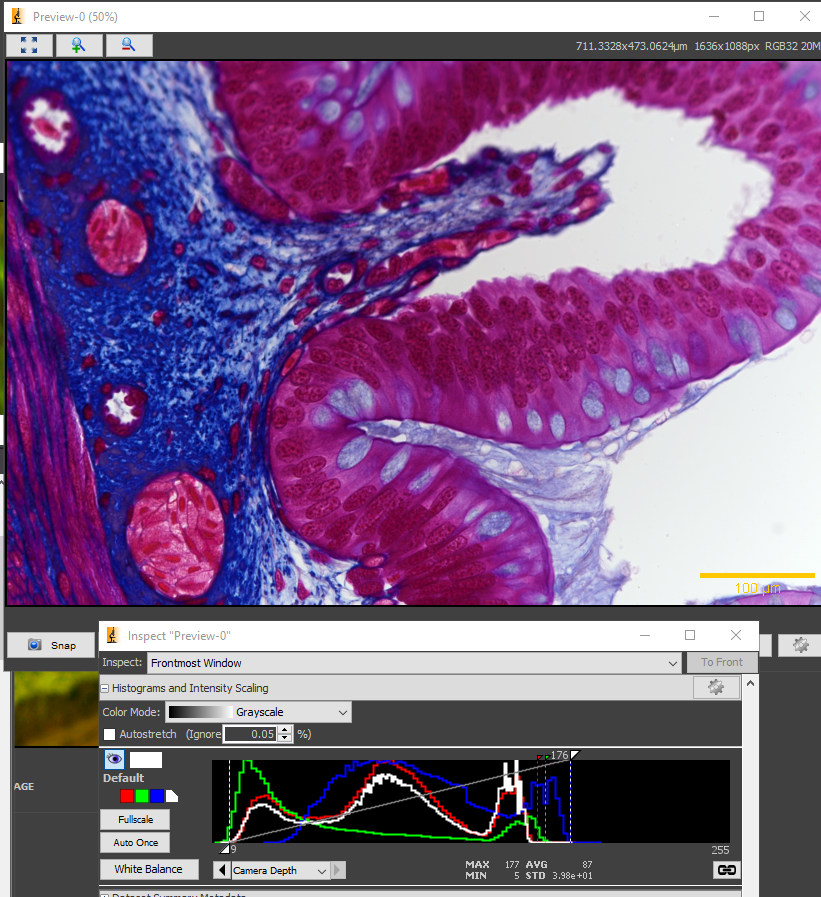
Note the Red-Green-Blue-White squares in the Inspect window. Also note there are now separate histograms for Red, Green, Blue, and White. Clicking the colored squares changes the behavior of the bright annd dark point trianglesin the histogram/contrast/brightness panel. When in white mode, moving those triangles changes the brightness/contrast of all 3 colors the same way:
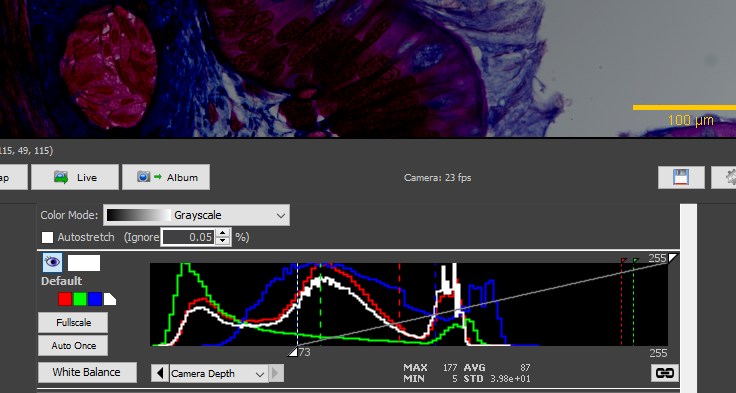
Checking the Autostretch checkbox while white mode is selected, whill autostretch the overall brightness/contrast of the image:
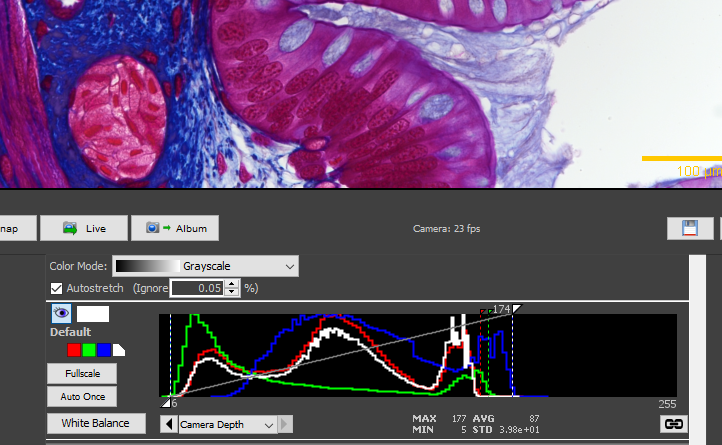
So, what happens when we select one of the other colors? Let’s try Green:
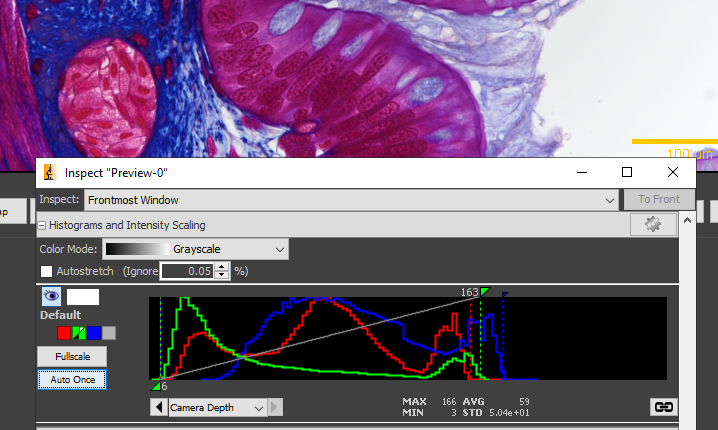
Now, the triangles only work on the Green component. So, moving the top triangle to the left will make the green color look much brighter but leave the other colors unchanged, and the image overall color will change and attain a very strong green hue.
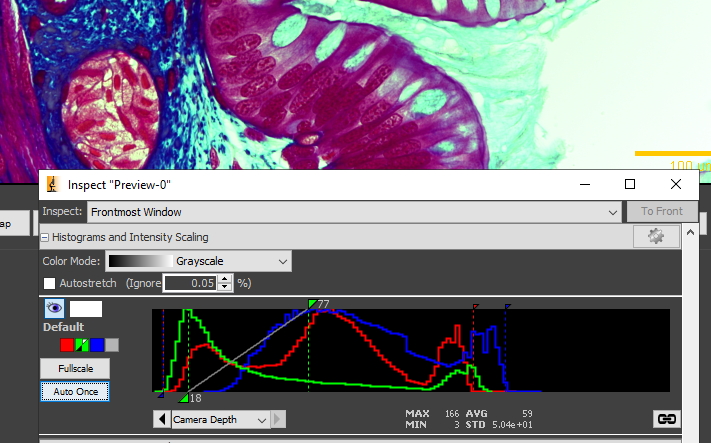
Switching back to White mode and changing the sliders, the green hue stays! So, changing bright and dark points of the individual color changes the White Balance of the image.
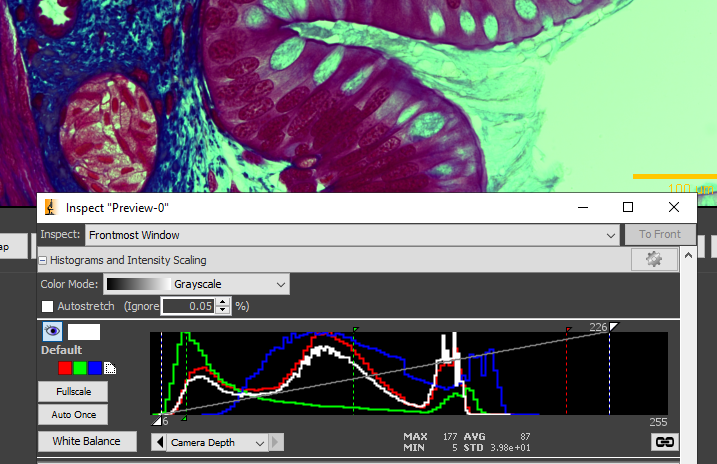
Now, setting the bright and dark points of the individual colors is not a very convenient way to control White Balance. Therefore, we implemented a couple of different methods to do so. You can click on the White Balance button and see the options. “From Picked Point”. That let’s you click on a point in the image:
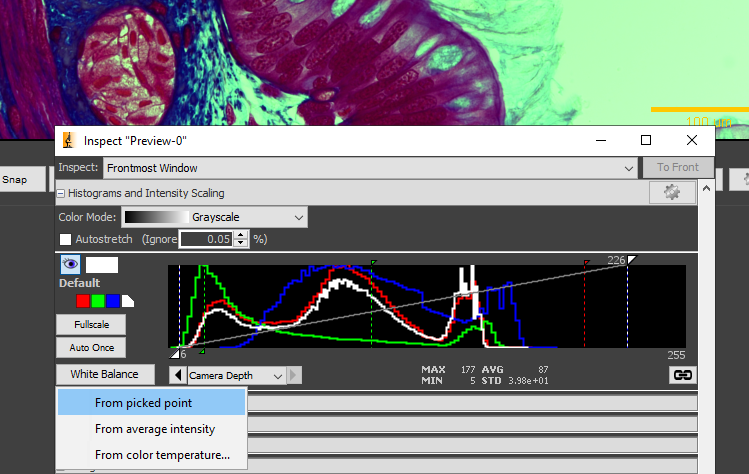
After you click on a point, the software will use the ratio of Red Green and Blue in that point to balance the colors in the image (basically, whatever the ratio in that point is will now be displayed as white):
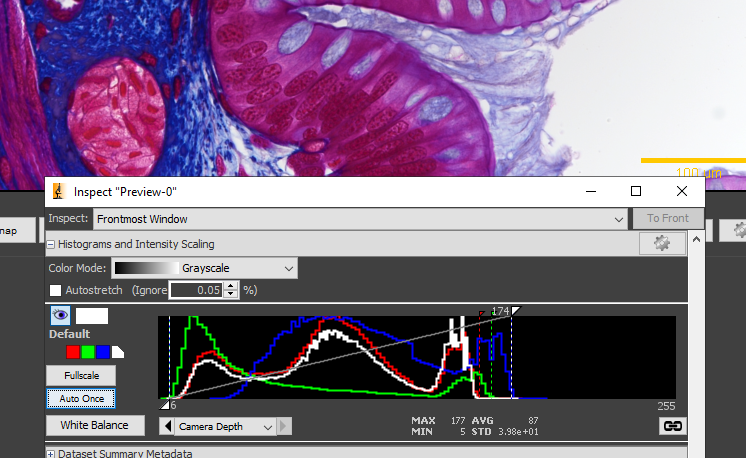
You can also choose to use the average intensities of Red Green and Blue to determine the White Balance. My brother told me that is often a good choice (and he spend a lot of time thinking about automated color balancing).
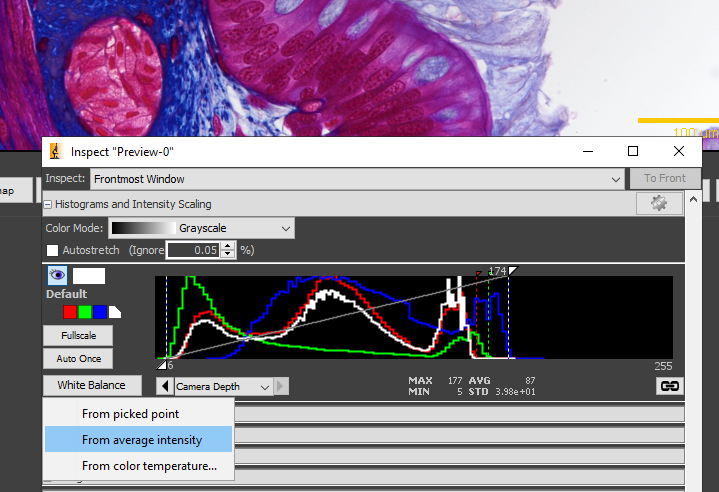
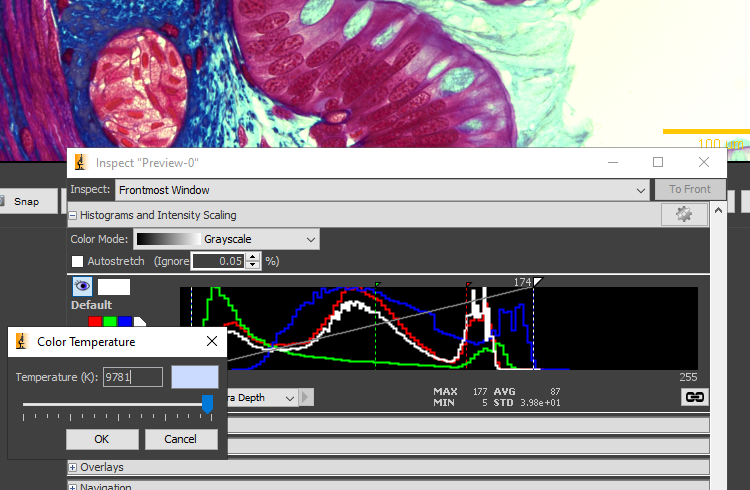
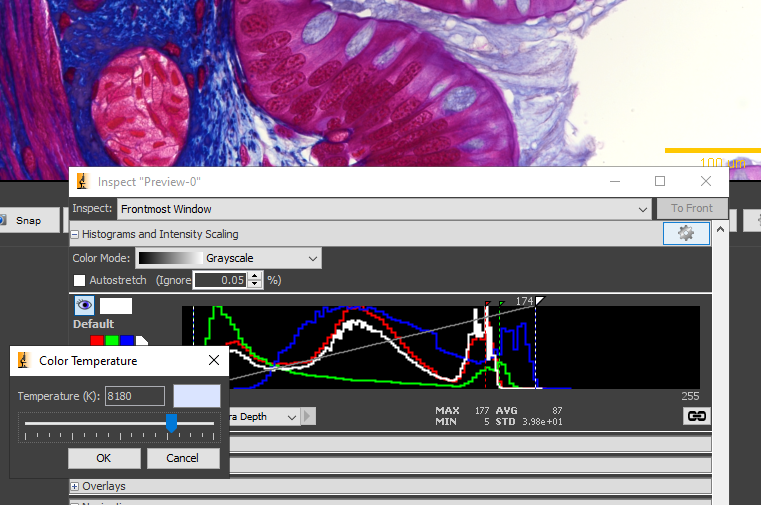
Or you can use color temperature. Sine that is a single number, and we control two ratios (red to green and red to blue), this is necessarily inexact, but used in many cases and intuitive for many. I hope I do the conversion the correct way around.
If you like it, have suggestions for improvements, or find bugs, please contact us through image.sc (tag with micro-manager) or open an issue on github.